Deploying Passkeys in Microsoft Entra ID: The Credential Is Only Part of the Control
Passkeys are strong credentials. They are not a complete authentication programme.
Microsoft Entra ID can make passkeys available, but the organisation still has to decide which passkeys are acceptable, who should register them, how users get their first credential, what happens when they lose it, and where stronger authentication should be enforced.
Most passkey conversations focus on phishing resistance. That matters, but it is only the technical starting point. The real implementation begins when passkeys meet Conditional Access, privileged access, user support, device replacement, identity recovery and the normal operational mess of an organisation.
This article looks at the practical Microsoft Entra side of passkeys: credential types, assurance, registration, attestation, recovery, Conditional Access and the operating model needed to make the control work.
What a passkey actually gives you
Passkeys are phishing-resistant credentials based on FIDO standards. Instead of sending or reusing a password, the authentication process uses a public and private key pair.
Microsoft Entra ID stores the public key. The private key remains under the control of the user’s authenticator or passkey provider. During sign-in, Entra sends a challenge that is signed using the private key and verified using the public key.
The credential is also bound to the service it was created for. A passkey registered for Microsoft Entra ID cannot simply be entered into a fake sign-in page and replayed by an attacker in the way a password or one-time code can.
Microsoft explains the authentication flow in its overview of passkeys in Microsoft Entra ID.
That is a meaningful security improvement. It reduces reliance on reusable passwords and phishable authentication methods such as SMS codes, email codes and traditional push-based MFA.
It does not remove the need for device security, Conditional Access, identity lifecycle management or recovery. Attackers do not stop looking for another route just because the password is gone.
Passkeys solve an important authentication problem. They do not solve every identity problem sitting next to it.
A passkey is not one assurance level
Microsoft Entra ID supports both device-bound and synced passkeys. Both are phishing-resistant, but they represent different assurance and operational choices.
Device-bound passkeys
With a device-bound passkey, the private key is created and stored on a specific physical device and does not leave it. Examples include FIDO2 security keys and passkeys stored in Microsoft Authenticator.
Device-bound credentials can support scenarios where the organisation wants tighter control over the authenticator being used. They may be appropriate for privileged administrators, regulated environments or access to particularly sensitive resources.
That additional control has an operational cost. Physical keys need to be purchased, distributed, replaced and supported. Passkeys stored in Microsoft Authenticator still depend on the user having an available and properly configured device.
Lost devices and lost keys are not unusual edge cases. They are part of the expected operating model.
Synced passkeys
Synced passkeys are encrypted and stored through a passkey provider, such as Apple iCloud Keychain or Google Password Manager. The credential can then become available across devices connected to that provider.
This can significantly reduce adoption friction for a broad workforce. Users do not necessarily need a separate physical authenticator, and replacement devices can be easier to handle.
The trade-off is that synced passkeys do not support attestation in Microsoft Entra ID. The organisation therefore has less device provenance than it may have with an attested device-bound credential.
Microsoft’s current documentation distinguishes between the two models and recommends considering device-bound credentials for highly privileged or regulated populations, while synced passkeys can provide a lower-friction option for broader user groups.
This is not a simple choice between “secure” and “insecure.”
It is a choice between different combinations of assurance, usability, cost and support.
The correct answer for 2,000 standard users may not be the correct answer for 12 privileged administrators.
Passkey profiles translate risk into policy
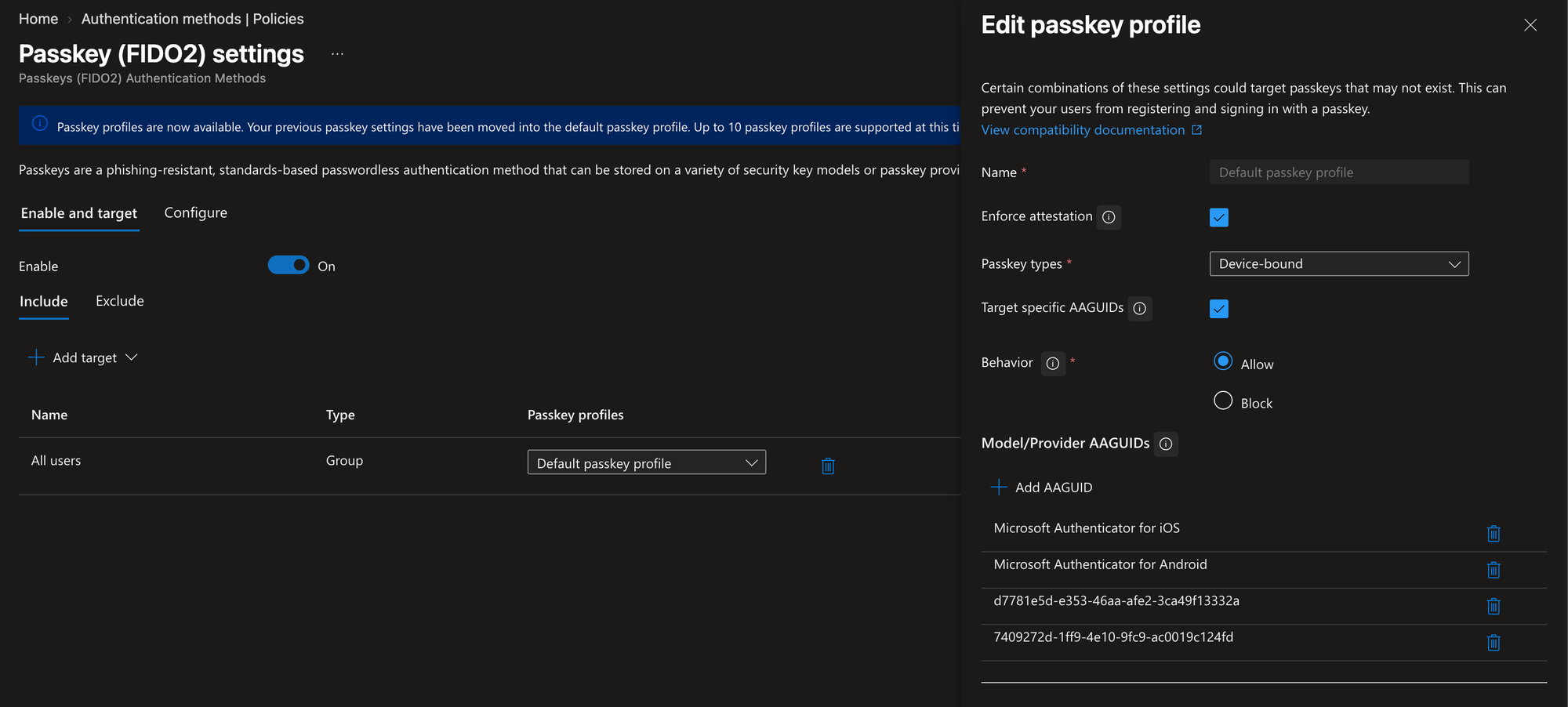
Microsoft Entra passkey profiles allow organisations to apply different passkey requirements to different groups. A profile can define:
- Whether device-bound, synced or both types of passkeys are permitted
- Whether attestation is required
- Whether specific authenticator models or providers are allowed or blocked
- Which user groups receive the profile
This is where the organisation turns a general objective such as “we want phishing-resistant authentication” into an actual credential policy.
Before configuring the profile, someone needs to answer the less exciting but more useful questions:
- Which users require stronger device provenance?
- Are synced passkeys acceptable for the standard workforce?
- Are specific security key models required for administrators?
- Is attestation needed, and what assurance is expected from it?
- Who approves exceptions when the preferred credential cannot be used?
- Who owns the support and replacement process?
Those are business and risk decisions with technical consequences. They should not be left to whichever administrator happens to be configuring the authentication methods policy.
What AAGUID restrictions actually do
An Authenticator Attestation GUID, or AAGUID, identifies a type of authenticator, such as a particular security key model or passkey provider.
Microsoft Entra can use AAGUID restrictions to allow or block selected authenticators. Custom Conditional Access authentication strengths can also be restricted to selected AAGUIDs.
That can be useful when an organisation wants administrators to use an approved security key model or a specific passkey provider. It can also become unnecessarily difficult to operate if the organisation has not defined how new models are approved, how existing credentials are inventoried, or what happens when a vendor changes hardware.
Microsoft also warns that AAGUID restrictions should be treated as policy guidance rather than a strict security control when attestation is not enforced.
The setting supports the control.
It does not remove the need to understand what has actually been registered.
Attestation and key restrictions behave differently
Attestation allows Microsoft Entra ID to verify information about the authenticator during registration. When attestation is enforced, Entra can validate that the credential comes from the stated provider or device model using trusted metadata.
The important detail is when that validation occurs.
Microsoft documents that attestation enforcement applies when the passkey is registered. If a user registered a passkey without attestation, enabling attestation later does not automatically prevent that existing passkey from being used.
Key restrictions behave differently. They affect both registration and authentication. If an AAGUID is removed from the allowed list, users with an existing passkey from that authenticator may no longer be able to sign in with it.
Microsoft documents both behaviours in its passkey configuration guidance.
This matters in tenants where passkeys have already been in use, where the policy has changed over time, or where the organisation has inherited an existing configuration.
A newly configured profile may accurately describe what users can register tomorrow without proving what they registered six months ago.
Before treating attestation or authenticator restrictions as an assurance boundary, inventory the existing registrations. Review the credential type, AAGUID and the population using it. Then decide whether existing passkeys can remain, need to be replaced or should be removed.
Some configuration changes are not retroactive enough.
Others can be much more retroactive than expected.
It is useful to know which type you are changing before pressing Save.
Registration is a deployment phase
Allowing passkeys does not mean users have registered one.
That sounds obvious, but it is where many authentication projects begin to drift. The policy is configured, the feature appears in the portal, and the project is described as implemented even though the user population has barely changed.
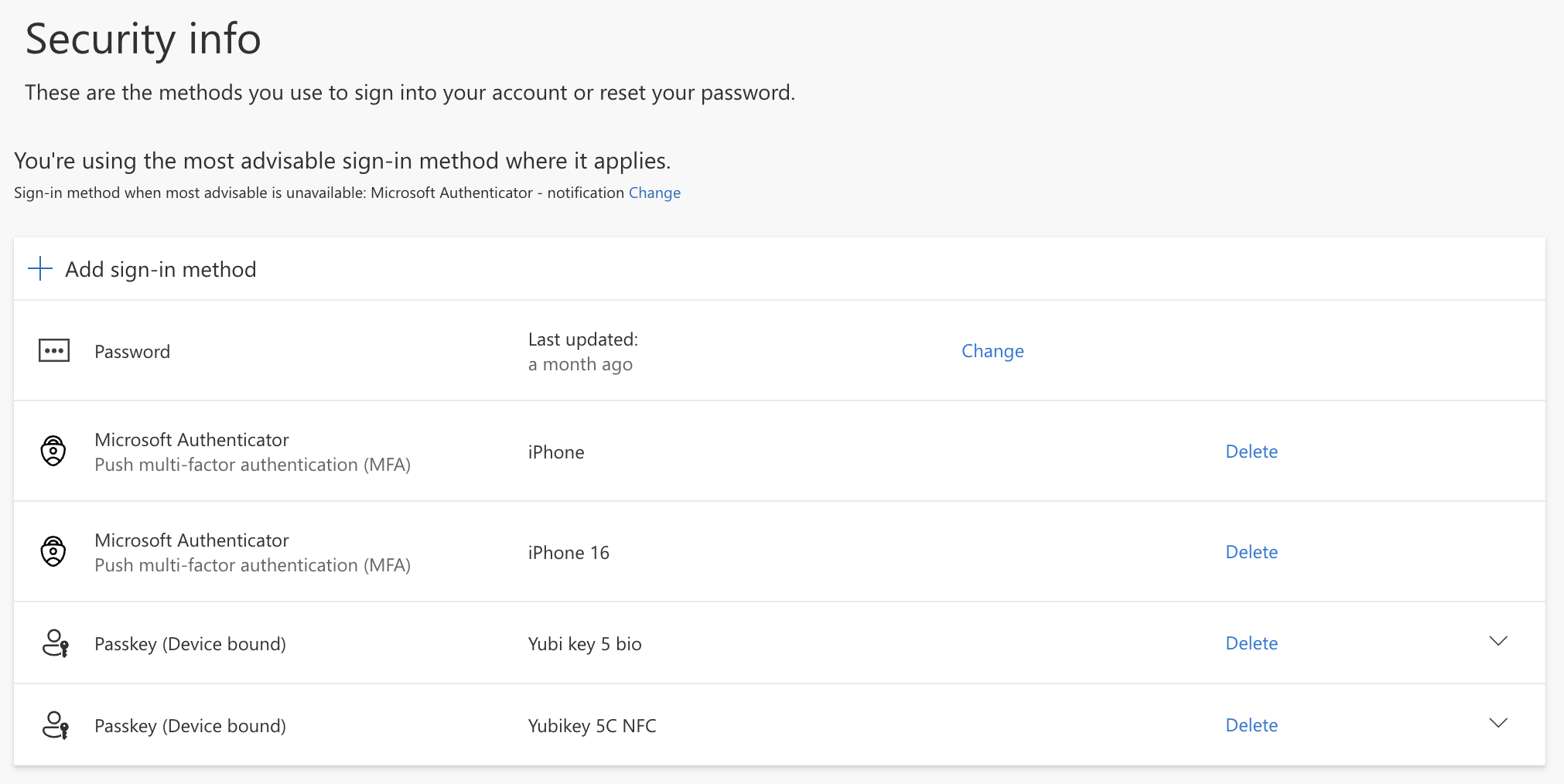
Users can manually register a passkey through Security info. They must strongly authenticate before registration, either through an existing Microsoft Entra MFA method or through a Temporary Access Pass issued by an administrator.
Microsoft also supports registration campaigns that can prompt targeted users to register a passkey during their normal sign-in flow. Groups can be included or excluded, and users can be given a limited ability to postpone the prompt.
A registration campaign can help drive adoption.
It does not decide which passkey users should select, explain the difference between a synced and device-bound credential, prepare the service desk, or define what happens when registration fails.
That still belongs to the organisation.
Use a pilot that represents real users
A useful pilot should include more than the five people in IT who already own three security keys and enjoy reading authentication logs.
Include a mixture of:
- Standard users and privileged administrators
- Windows, macOS and mobile users
- Device-bound and synced passkey scenarios
- Users who need help during registration
- New starters who need to bootstrap their first credential
- Users who replace or lose the device containing their passkey
- Applications that matter to the business, not just the Microsoft admin portals
The objective is not merely to demonstrate that a passkey can complete a sign-in.
Microsoft has already demonstrated that.
The objective is to determine whether your users, applications, devices and support processes can operate the control reliably.
Bootstrap and recovery are part of the authentication design
Every passwordless deployment eventually reaches the same question:
How does the user get the first credential?
An existing user may be able to authenticate with an established MFA method and register a passkey. A new user, a separate administrator account or someone who has lost their strong authentication method may need a different route.
Microsoft Entra Temporary Access Pass provides a time-limited passcode that can be configured for single use or multiple sign-ins. It can be used to bootstrap passwordless authentication methods and can also assist when a user loses access to an existing strong authentication method.
TAP is useful, but issuing a TAP is not the complete recovery process.
The organisation still needs to define:
- Who is permitted to issue one
- How the user’s identity is verified first
- How the TAP is delivered securely
- How long it remains valid
- Whether it can be used once or multiple times
- How old or lost credentials are removed
- How the activity is reviewed afterwards
A weak recovery process can undermine a strong authentication method. If an attacker can convince the service desk to reset the credential or issue a new bootstrap method, the cryptography did not fail.
The process around it did.
Organisations should also decide whether users need more than one usable passkey or another approved recovery method. A backup credential can improve resilience, but it also creates another credential that must be governed, reviewed and removed during offboarding.
There is no useful answer that consists only of “let the helpdesk handle it.”
The helpdesk needs a defined identity-verification process, clear ownership and an escalation route for higher-risk accounts.
Registration policy is not Conditional Access
Three different Microsoft Entra controls are involved in a passkey deployment:
- The authentication methods policy determines whether users can register and use passkeys.
- The passkey profile determines which passkey characteristics are acceptable for targeted groups.
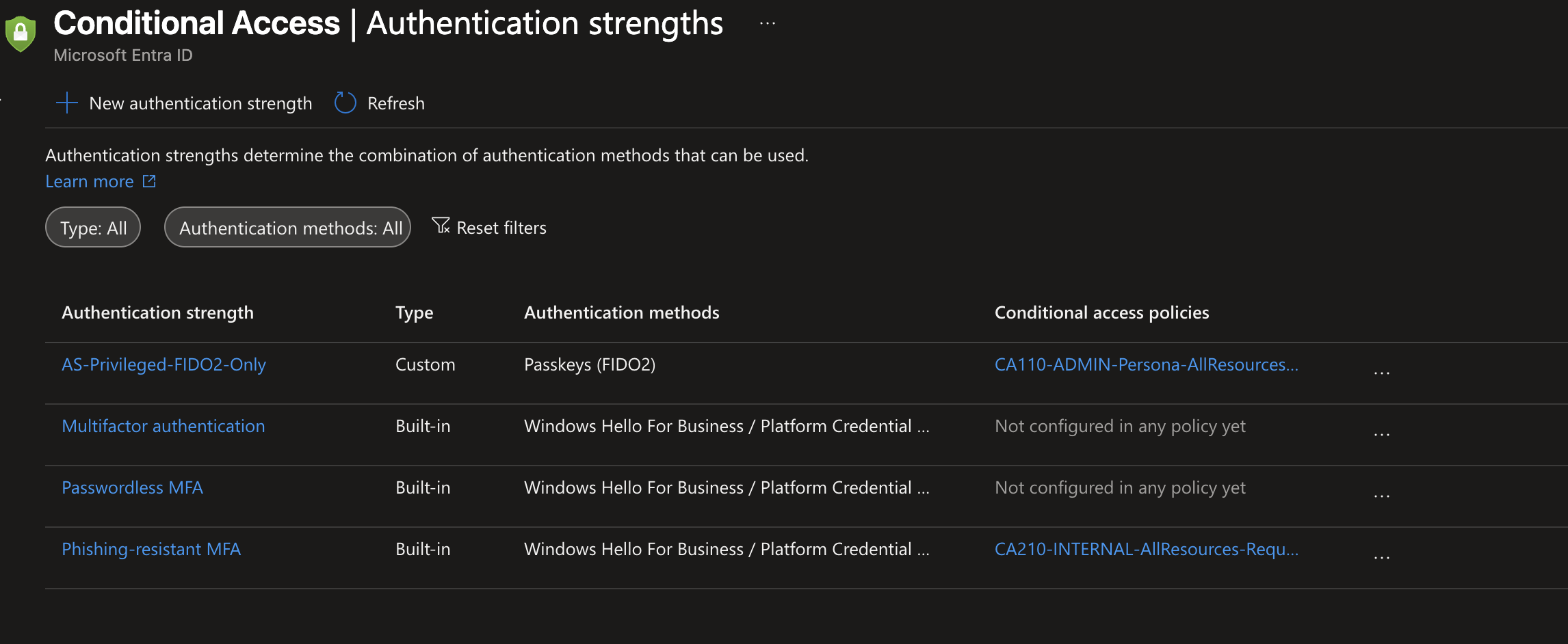
- Conditional Access authentication strength determines which authentication methods must be used before access is granted to a resource.
They support one another, but they answer different questions.
The authentication methods policy asks:
Can this user register and use a passkey?
The passkey profile asks:
What type of passkey is acceptable for this user?
Conditional Access asks:
Is the authentication used for this resource strong enough?
Microsoft provides a built-in phishing-resistant authentication strength that can accept supported phishing-resistant methods. Organisations can also create a custom authentication strength that permits passkeys and, where required, restricts them to specific AAGUIDs.
This is the point where an adoption gap becomes an access problem.
If Conditional Access requires an authentication strength and the user does not have a registered method capable of satisfying it, access can be blocked. Microsoft specifically advises ensuring users are registered for methods such as passkeys before applying a policy that requires them.
Conditional Access is enforcement, not onboarding. It is not user communication, credential distribution, recovery planning or a substitute for checking readiness.
Start with a controlled population and limited resource scope. Monitor sign-in failures, service desk demand, unexpected authenticator types and application behaviour before expanding.
The rollback decision should also be defined before enforcement begins. Someone needs authority to pause expansion, change the scope or disable the policy if the failure rate becomes unacceptable.
A rollback plan written during the incident is not much of a rollback plan.
Measure readiness, not just registration
Microsoft Entra’s Authentication Methods Activity reporting can show registration and usage across the tenant, including which users are capable of passwordless authentication and which authentication methods have been registered.
The reporting is useful, but it is not real-time and can have a delay of up to 36 hours. More importantly, a report showing that a user has registered a FIDO2 method does not automatically prove that the credential meets the organisation’s intended assurance requirements.
A mature readiness review should be able to answer:
- Which users have registered a passkey?
- Which of those passkeys satisfy the intended profile and authentication strength?
- Which credential types and AAGUIDs are currently in use?
- Which users still depend on weaker or unsupported methods?
- Have the required applications and device scenarios been tested?
- Has bootstrap and recovery been exercised rather than merely documented?
- Who owns failed registrations and access incidents?
- What signal will stop or roll back broader enforcement?
A registration percentage is useful evidence.
It is not the security programme.
A practical rollout model
A passkey deployment does not need to become a three-year transformation programme. It does need more structure than enabling a policy and hoping adoption happens around it.
Phase 1: Define the assurance target
Identify the user populations and resources that matter.
Standard users, privileged administrators, developers, finance users and emergency access accounts may not all need the same credential requirements. Decide whether synced passkeys are acceptable, whether device-bound credentials are required, and where attestation or authenticator restrictions are justified.
Document the reason for the decision. “Security wanted it” is not a durable policy rationale.
Phase 2: Configure the passkey profiles
Create profiles that reflect the agreed assurance levels and assign them to controlled groups.
Avoid building unnecessary complexity on day one. Every extra authenticator restriction introduces another dependency that will eventually need review, support and exception handling.
The strongest-looking configuration is not always the strongest operating model.
Phase 3: Enrol a representative pilot
Enable self-service registration where appropriate, use registration campaigns to encourage adoption and use Temporary Access Pass where bootstrap is required.
Track who succeeds, who fails and why. Include users outside the identity and security teams. Confirm that users understand where their passkey is stored and what they need to do if the device or key becomes unavailable.
Phase 4: Validate the failure paths
Test the things that do not appear in the successful demonstration:
- Lost device
- Lost or damaged security key
- Replacement phone
- Deleted passkey
- New administrator account
- User offboarding
- Emergency access
- Application and browser compatibility
- Helpdesk identity verification
- Temporary Access Pass issuance and expiry
The successful sign-in is usually the easiest part.
The implementation is tested properly when the organisation knows how to recover without creating a weaker route around the control.
Phase 5: Enforce progressively
Apply the intended authentication strength to a controlled scope before expanding it.
This might begin with selected administrative access, a sensitive application or a defined pilot population. Monitor the result and confirm that the users in scope can satisfy the requirement consistently.
Do not use broad enforcement to discover whether users are ready.
Use readiness evidence to decide when broad enforcement is justified.
Phase 6: Operate the credential lifecycle
Passkeys are not registered once and then forgotten.
New users join. Devices are replaced. Security keys are lost. Administrators change roles. Passkey providers and authenticator models change. Policies are updated, and exceptions that were described as temporary develop surprisingly long lives.
Review registration, usage, recovery activity, authenticator models and policy exceptions regularly. Make passkey lifecycle management part of joiner, mover and leaver processes rather than a separate security project that slowly becomes outdated.
Microsoft gives you the authentication platform.
It does not automatically give you the operating model.
Enrol first. Verify second. Enforce third.
Passkeys are worth deploying. They provide strong phishing-resistant authentication and can improve the user experience by reducing dependence on passwords and traditional MFA prompts. But the credential is only one part of the control.
The organisation must still choose the right passkey type, define the expected assurance, enrol the right users, understand existing registrations, protect bootstrap and recovery, apply Conditional Access carefully, and operate the credential throughout its lifecycle.
The control is not “passkeys enabled.”
The control is that the right users can use the right credentials for the right resources, and that the organisation knows what to do when any part of that process fails.
Microsoft documentation
- Passkeys (FIDO2) authentication method in Microsoft Entra ID
- How to enable passkeys (FIDO2) in Microsoft Entra ID
- Enable synced passkeys in Microsoft Entra ID
- Register a passkey (FIDO2)
- Configure Temporary Access Pass
- Run a registration campaign for passkeys
- How Conditional Access authentication strengths work
- Create and manage custom authentication strengths
- Authentication Methods Activity